9.5 DISPATCH
The driver guide. Short parts. Tap one to open it.
THE SHORT VERSIONWhat it is. What it is not.
WHAT IT IS
- Your own record of your hours: clock-in, clock-out, lunch.
- It counts your days over 9.5 and fills in Local 760's grievance form for you.
- The morning dispatch board, in your pocket.
WHAT IT IS NOT
- Not a UPS app. Nothing connects to UPS. No management login, ever.
- Not tracking you. No GPS, no location. Only your own alarms, if you set them.
- Not finished. It is a pilot. Tell Jose what breaks.
PART 1 · INSTALL (IPHONE)Two installs: Apple's delivery app first, then ours.
Not in the App Store yet. Apple's TestFlight app delivers it. Install TestFlight first.
- Open the App Store. Search TestFlight (blue icon, white propeller). Install it. Free, from Apple.
- Then tap the 9.5 Dispatch link Jose texted you. It opens inside TestFlight. Tap Install.
- 9.5 Dispatch is now on your home screen. Open it from there from now on. It updates itself, mostly. If Jose says update, open TestFlight and tap Update.
THE LINK JOSE TEXTS YOU
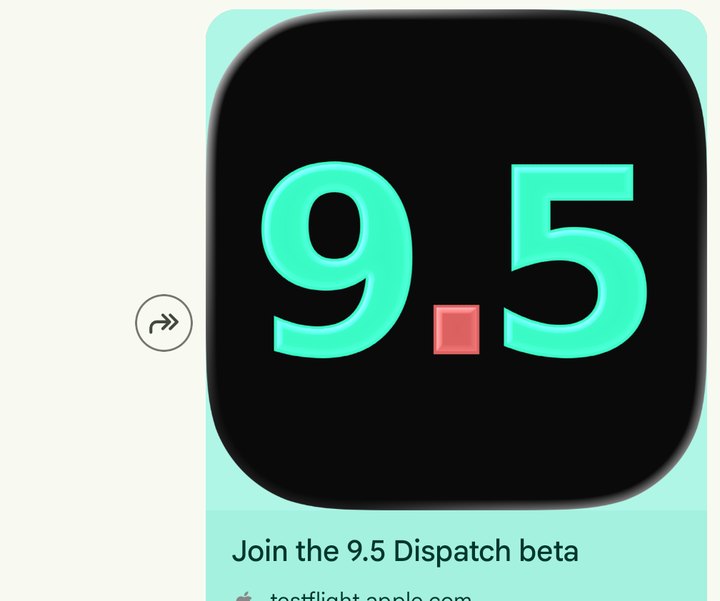
Tap it. Get TestFlight first, or it opens a web page instead.
YOUR HOME SCREEN
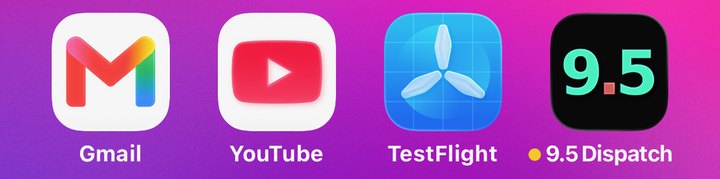
TestFlight is Apple's app that delivers ours. Install it first.
9.5 Dispatch From now on, open it from here.
YOU SEE A WEB PAGE THAT SAYS "STEP 1 / STEP 2"
You tapped the link before TestFlight was installed. On that page tap View in App Store, install TestFlight, go back, tap Start Testing.
TESTFLIGHT ASKS FOR A "CODE"
Tap Cancel. We don't use codes. Go back to Jose's text and tap the 9.5 Dispatch link again.
Android? Text Jose the Gmail your Play Store uses. He sends you a link. Tap Become a tester, then Download it on Google Play.
PART 2 · SIGN INNo password. Your email is your key.
- Open 9.5 Dispatch. Type your email exactly the way you gave it to Jose. Tap Email me a link once. It says Sent ✓. Leave it alone.
- Open that email on this same phone. Tap the link once. Nothing after a minute? Check Spam.
- Type your name the way it's printed on the sheet: LAST, then FIRST. Two boxes.
- Tap YOUR USUAL START and set your scheduled start. Check the privacy box. Done.
SIGN IN
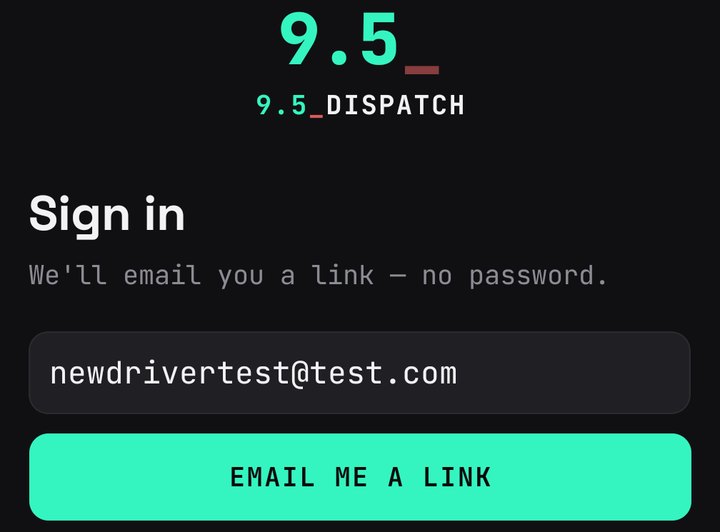
EMAIL ME A LINKTap it once.
Your email, exactly the way you gave it to Jose.
SENT
Don't keep tapping. It rests 30 seconds, then says SEND IT AGAIN.
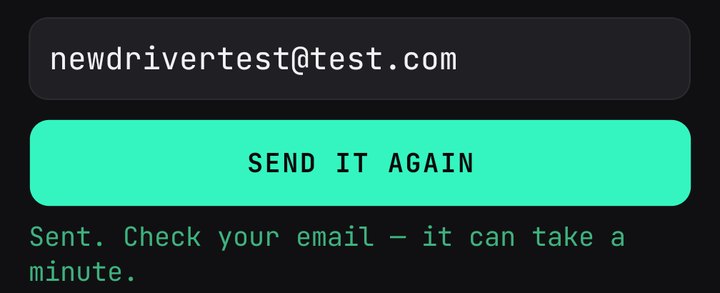
SENTOpen your email on this same phone. Tap the link once. Nothing after a minute? Check Spam.
THE EMAIL
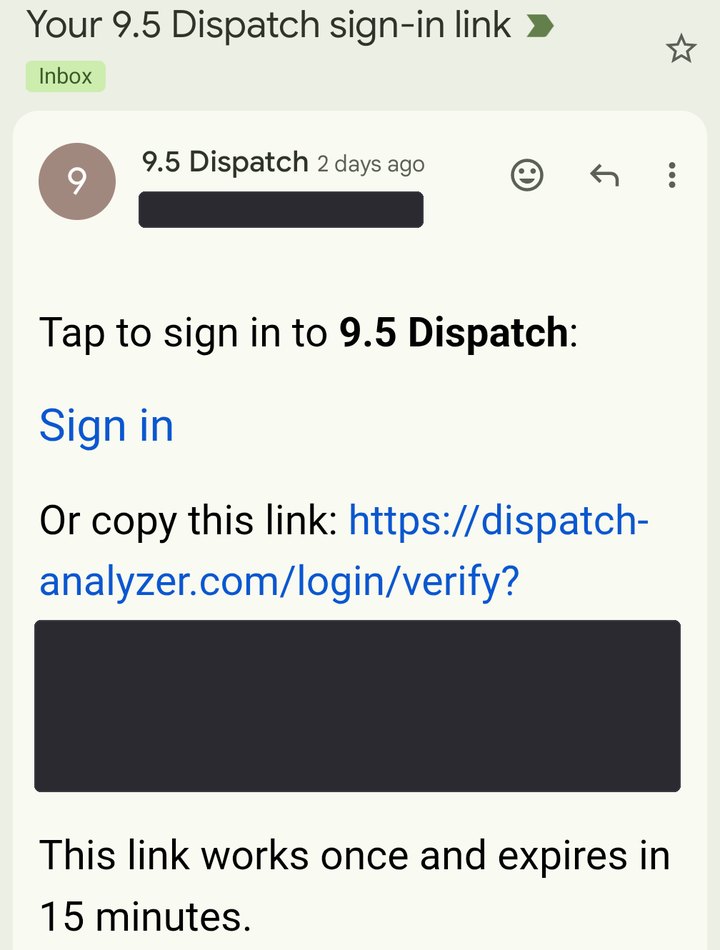
SIGN INTap it once, on this same phone.
Works once, for 15 minutes. Too old? Ask for a new one.
SET UP YOUR ACCOUNT
Your name the way it's printed on the dispatch sheet. LAST, then FIRST.
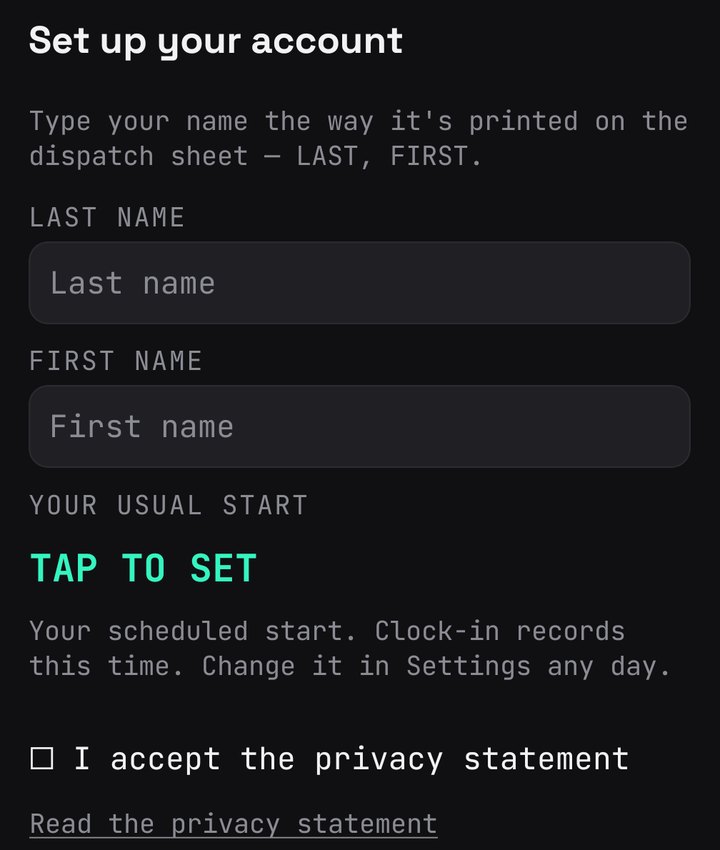
YOUR USUAL STARTTap it, set your scheduled start. HOLD TO START records this time every day.
Read it. Tick it.
NOTHING EVER ARRIVES
Your address is not on Jose's list yet, or it differs by one dot or letter. Text Jose the exact address. Don't keep tapping: five tries and sign-in locks for 15 minutes.
THE LINK OPENED A WEB PAGE, NOT THE APP
On that page tap COPY CODE. Go back to the app, tap Paste the code instead, paste it.
PART 3 · YOUR FIRST SCANMOST IMPORTANTOne scan, one time. It proves you work here.
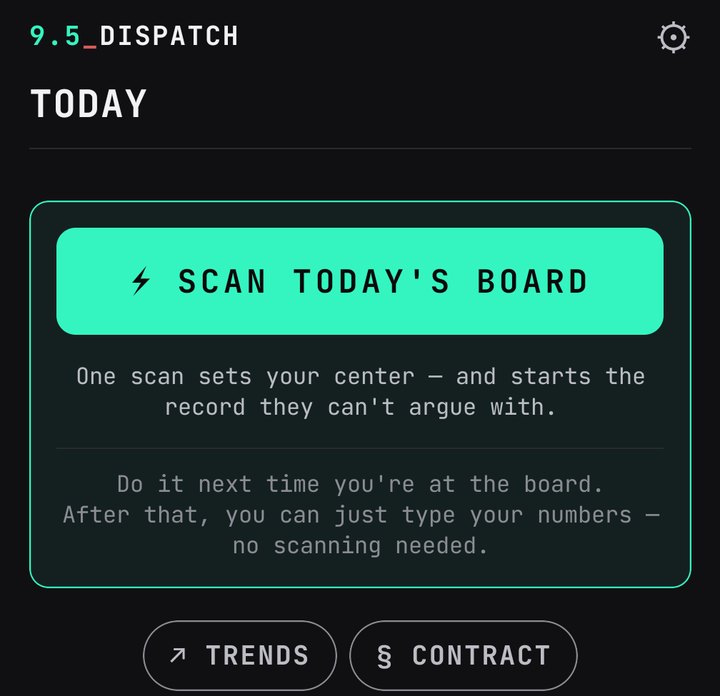
Scan the board once. That unlocks the app. No scan, no board, no clock-in. You do this once, ever.
- Hold the phone level till it says ✓ HOLD — STRAIGHT. Get close. Fill the frame.
YOUR FIRST TODAY
BEFORE YOUR FIRST SCANThis is all there is. One scan opens the board, the 9.5 and the rest.
Three tall photos, left to right, like reading a page. Top row to bottom row in every one. Let them overlap a little.
PHOTO 1 · LEFT
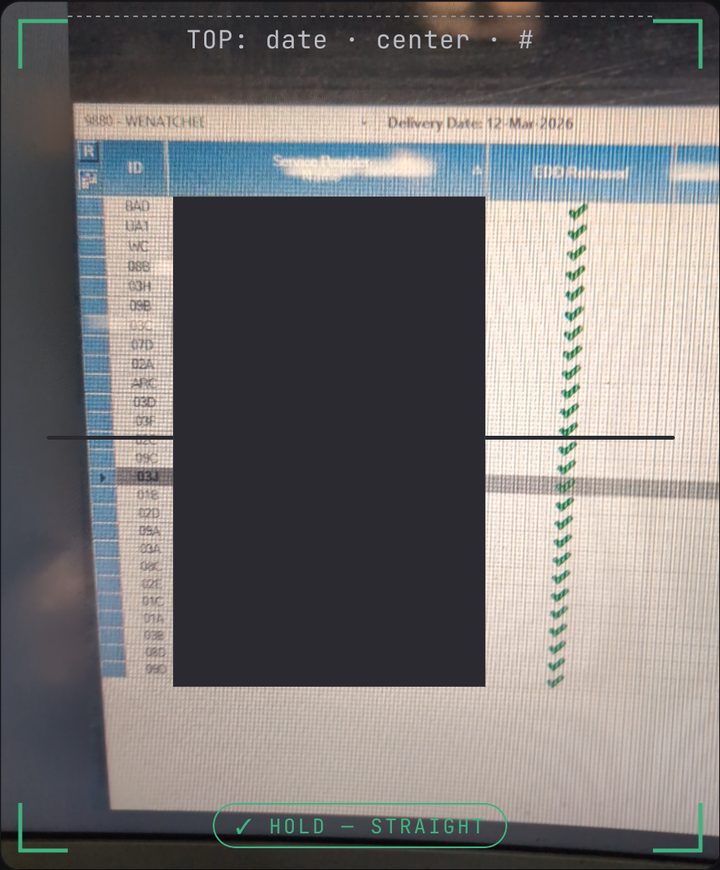
CENTER + DATENo box, no save.
Top row to
bottom row
Every route
and name
PHOTO 2 · MIDDLE
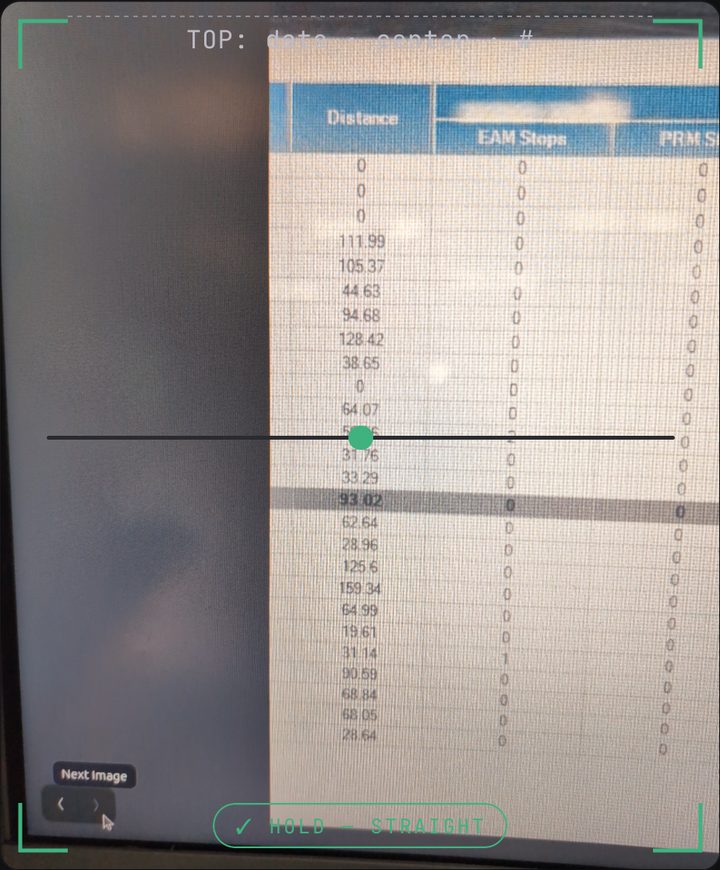
DISTANCE
PHOTO 3 · RIGHT
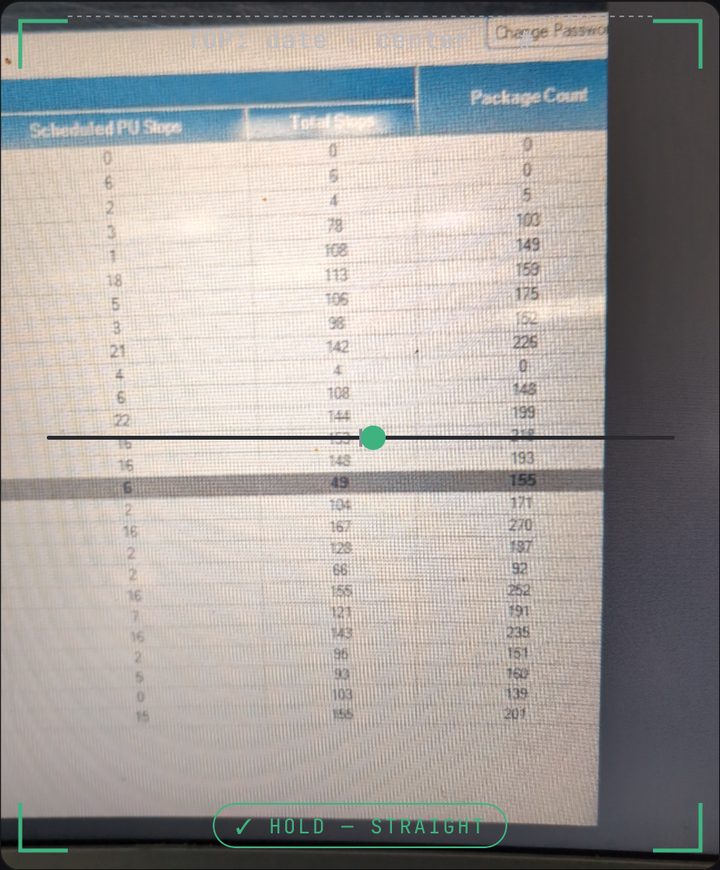
STOPS
PACKAGES
- Tap READ THE BOARD (3 photos) →. Not before all three. Give it a minute or two. You can put the phone down.
 123
123- On Check the numbers: check anything yellow, tap your own row, tap SAVE THE BOARD.
REVIEW · THE TOP
Your center. Right one? Good.
⚠ DATE? Not today's date. Tap it.
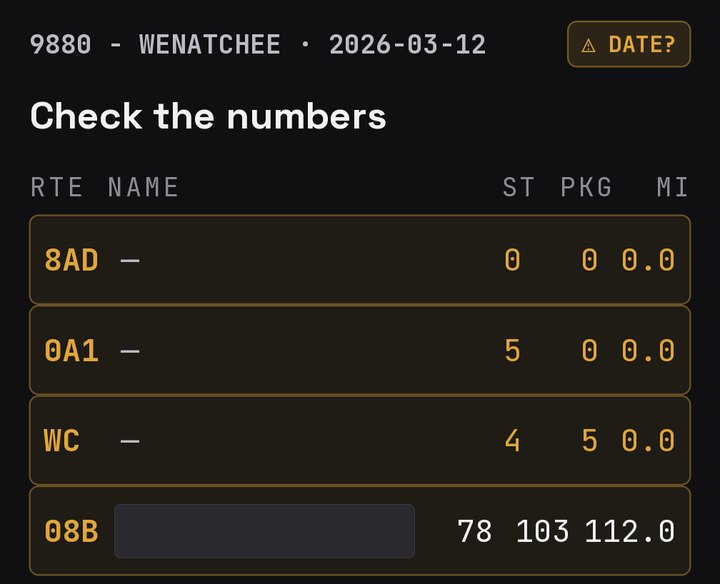
YELLOW = NOT SUREThe app wasn't sure of it. Check it against the board.
Yellow box: something in that row is still yellow.
REVIEW · SAVE
Your row: tap it on the name. ◄ YOU shows up.
YELLOW NUMBER?Tap it. Wrong? Type the right one. Right? Tap ✓ (DONE on iPhone). It turns white.
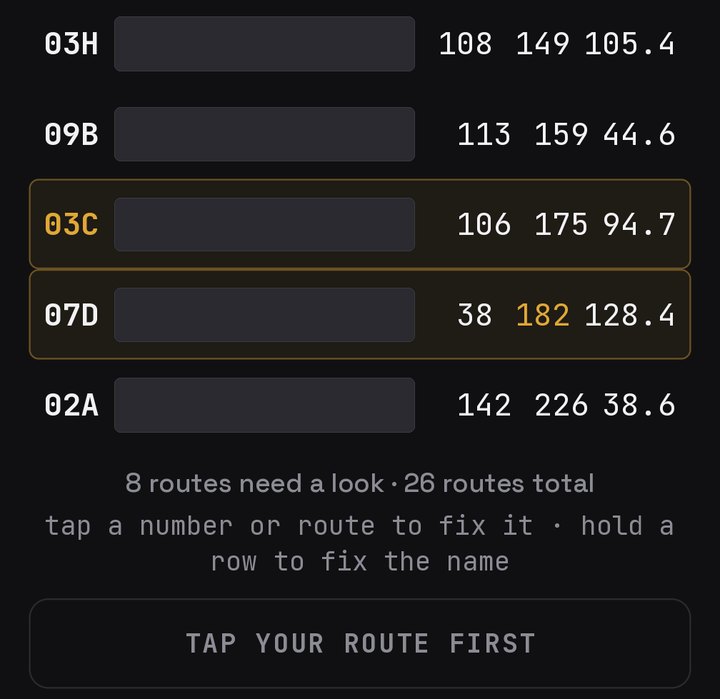
How many are still yellow. Scroll to find them.
SAVE THE BOARDShows up here once you tap your row. Tap it.
NO CENTER BOX, NO SAVE
Your first scan needs that top-left box. Missed it? Retake photo 1.Later, if it can't read the box, it says COULDN'T READ THE CENTER BOX and lists your centers. Tap yours.
⚠ DATE? AT THE TOP
The date it read isn't today. Tap it, tap USE TODAY.It says ⚠ SET DATE? It couldn't read one. Tap it, pick today. Until then the button says SET THE DATE FIRST.
MESSED UP THE SCAN?
Nothing is lost. Missed columns come back blank. Type them in, or scan again. The top-left corner and the rows are enough to let you in for good.
PART 4 · EVERY DAYThree things: your row, clock in, clock out.
This is Today. It's the first page, every time you open the app.
TODAY · THE TOP
SETTINGSStart time, lunch, break alarms.
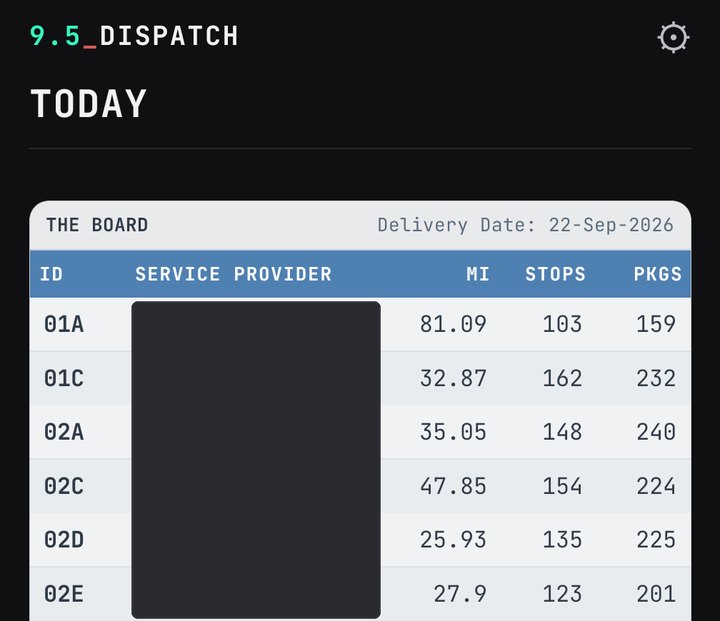
Wrong number? Tap the row and fix it.
YOUR ROW
YOUYour row. Wrong one? Tap ↺ wrong route? further down.
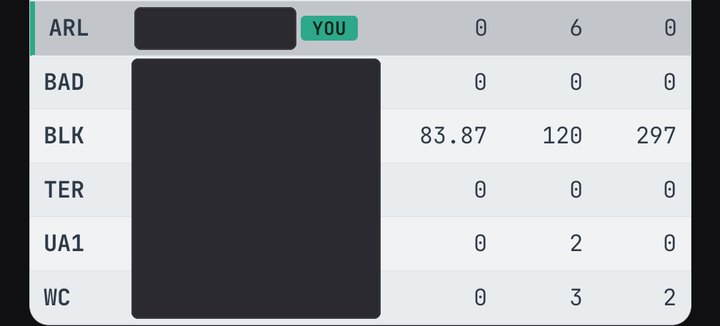
THE TWO BUTTONS
✎ ENTER MY ROUTEType your route. Numbers can wait.
⚡ SCAN THE BOARDFills the board for everyone.
Scanned already today? Skip it.
CLOCK IN
Wrong row says YOU? Tap this.
HOLD TO STARTHold it to clock in at that time. Tap it first to change the time.
THE REST OF THE APP

Your 9.5
week
Your
averages
The
contract
- Morning: find YOU. It marks your row. The first time on a scanned day, the app may ask you to Tap your route. No YOU, or the wrong one? Tap ✎ ENTER MY ROUTE and type your route. Cover driver? The route you're running today.
- Hold to clock in. The time on the button is what gets recorded. Different today? Tap it first. You stay on the board page about 15 minutes. Leaving sooner? Tap I'M ON THE ROAD.
ON THE ROAD
↺ fixWrong start time? Fix it here.
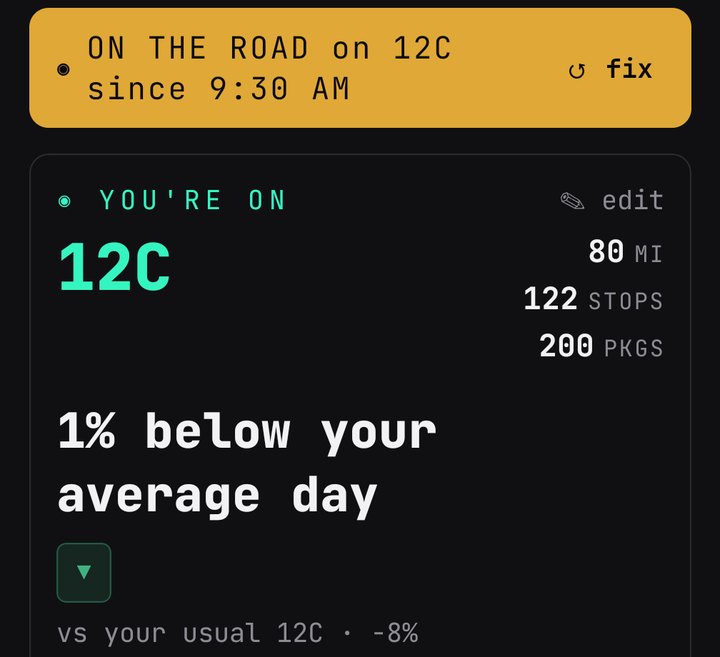
Today against your own average.
✎ edit Change your route or numbers.
ON THE ROAD · LOWER
▸ TODAY'S BOARD The board, folded. SCAN is in there.
CLOCK OUT WHEN DONEEnd of your day. Check the time, then hold.
- Tonight: clock out. Tap CLOCK OUT WHEN DONE →. Check the time and your lunch. Then hold.
END OF DAY · YOUR PUNCH
YOUR PUNCH-OUTSet to right now. Wrong? Tap it.
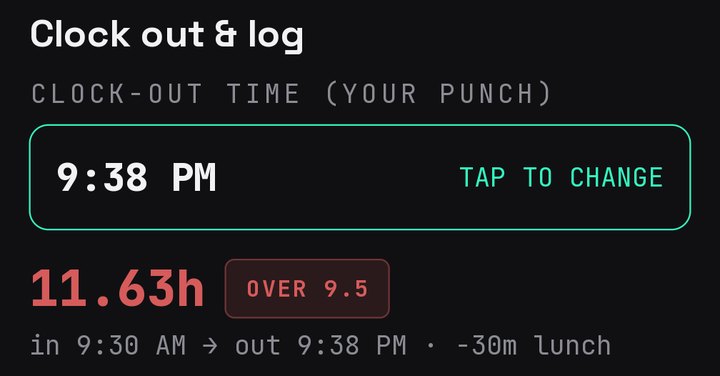
YOUR HOURSRed = over 9.5.
END OF DAY · LUNCH
Tap the lunch you took. It comes off your hours.
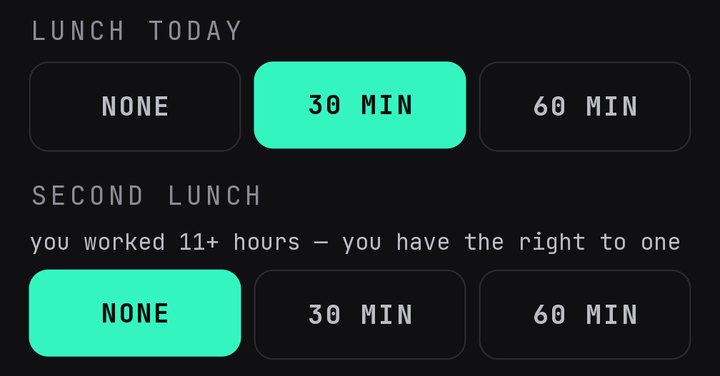
11+ hours, punch in to punch out? This row shows up. Second lunch? Mark it.
END OF DAY · WHAT YOU RAN
WHAT YOU ACTUALLY RANYour DIAD's numbers. Optional. Private.
they planned = the board's number for your route.
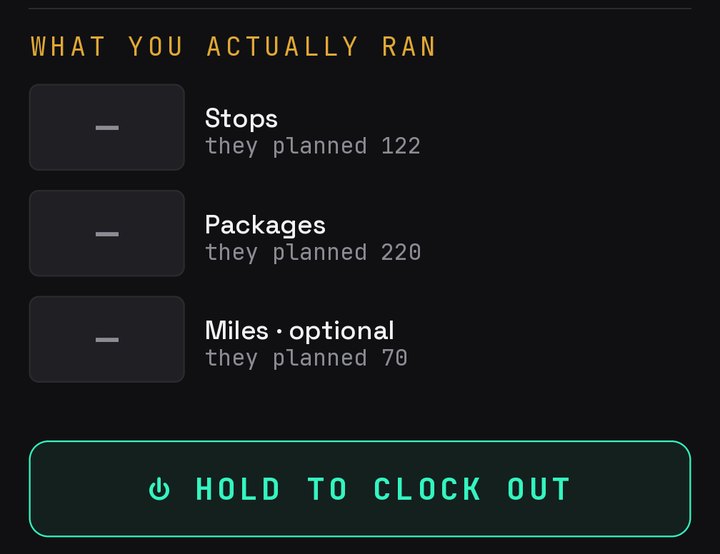
⏻ HOLD TO CLOCK OUTHold till the bar fills. That logs your day.
Your hours are the whole 9.5 case. Three days over 9.5 in a week, Monday to Friday, and the app tells you. FILE opens Local 760's own grievance form with your week filled in. Nothing is sent until you submit that form yourself. The 9.5 screen asks if you're on the list. Not sure? NOT YET.
WHAT THE APP DOESSix things. The first one is the reason it exists.
1 File the 9.5 in one tap
The app counts your days over 9.5 from your own clock-in and clock-out. Three in a week, Monday to Friday, and it tells you. FILE opens Local 760's own grievance form with your week already filled in. You read it and you submit it. Nothing is sent until you do. Your phone number and address stay on your phone until that moment.
THE 9.5 · THIS WEEK
◀ ▶ Other weeks.
3 DAYS = A GRIEVANCEThree days over 9.5, Monday to Friday. The app tells you.
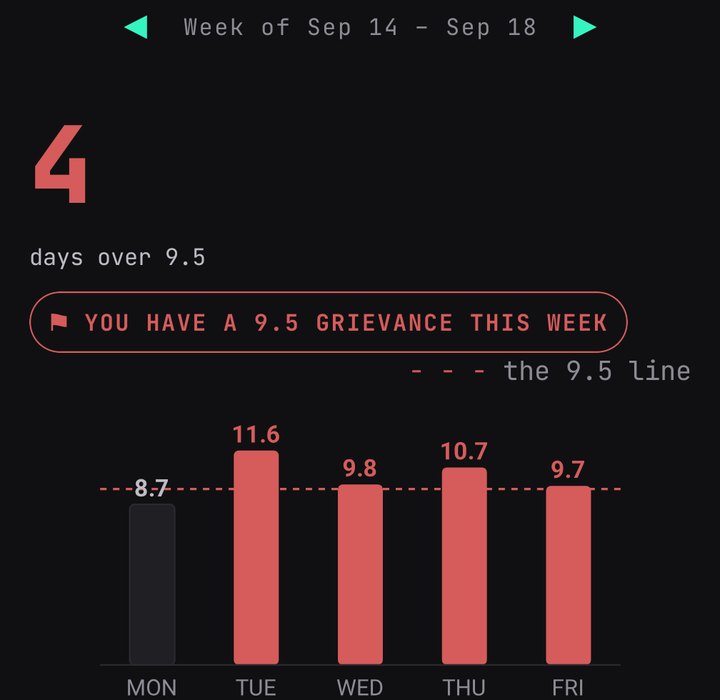
- - - is the 9.5 line. Red bars went over it.
THE 9.5 · THE DAYS
EACH DAYIn → out, route, hours. Red = over 9.5.
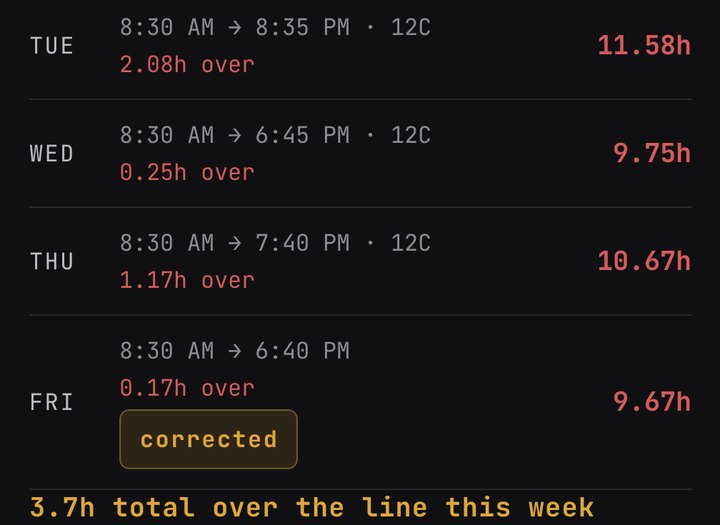
corrected = fixed with ✎ FIX THIS DAY. The first entry stays on the record.
Your week's total over.
THE 9.5 · FILE
Every week you filed, and where it stands.
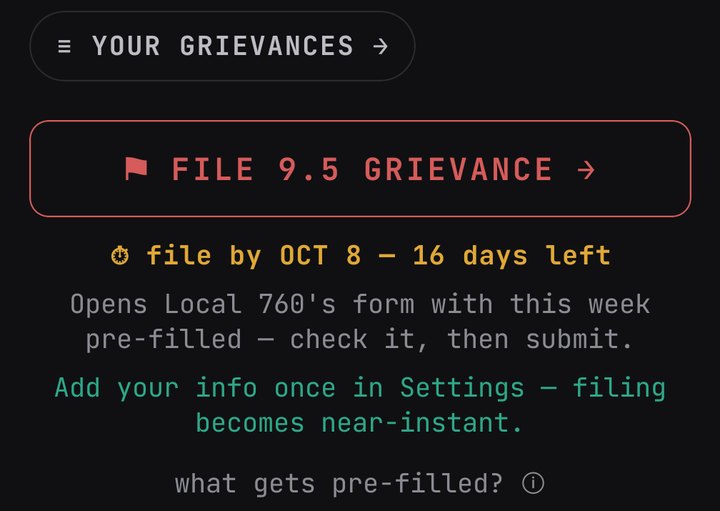
FILE 9.5 GRIEVANCEOpens Local 760's form with this week filled in. You check it, you submit.
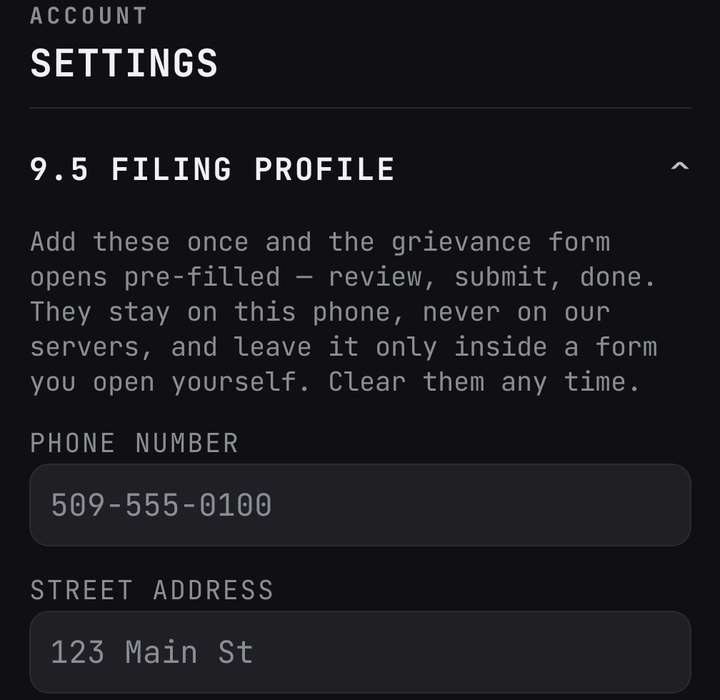
SETTINGS · 9.5 FILING PROFILE
ADD THESE ONCEThen FILE fills the form almost all the way. They stay on your phone.
YOUR GRIEVANCES
FILED and the day you filed.
Settled? Paid? Tap it when it happens.
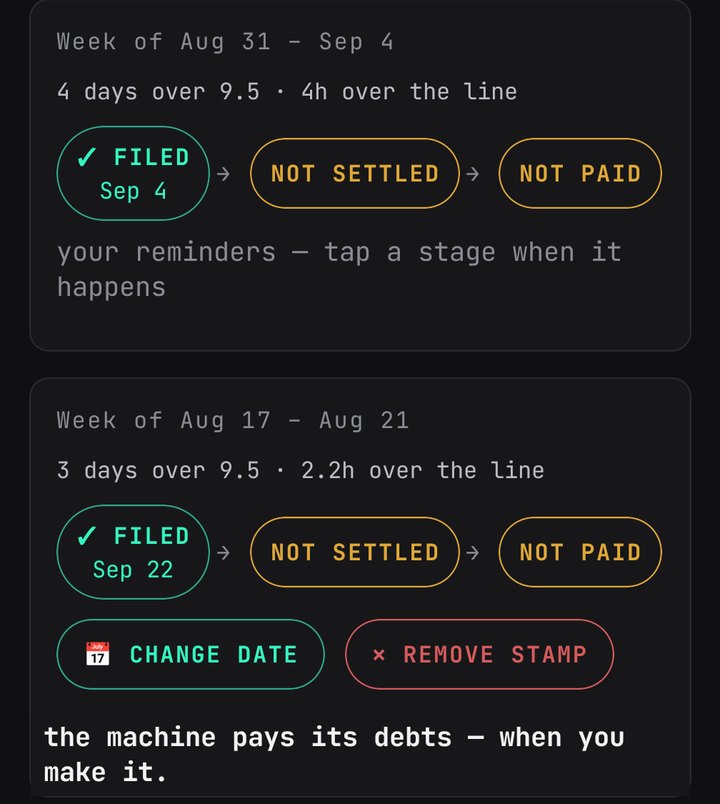
Tap a stamp to change its date or take it back.
2 One scan, the whole crew's board
One driver photographs the dispatch screen. Everybody at the center gets the board in their pocket: routes, stops, packages, miles. Tap any row to fix a number the camera read wrong.
 123
1233 Know your real day
Stops, packages and miles: what was on you at clock-in, what got added after, and what you actually ran. Counted by you, kept by you.
DAY LOGGED
YOU WORKEDYour hours. This is what the 9.5 counts.
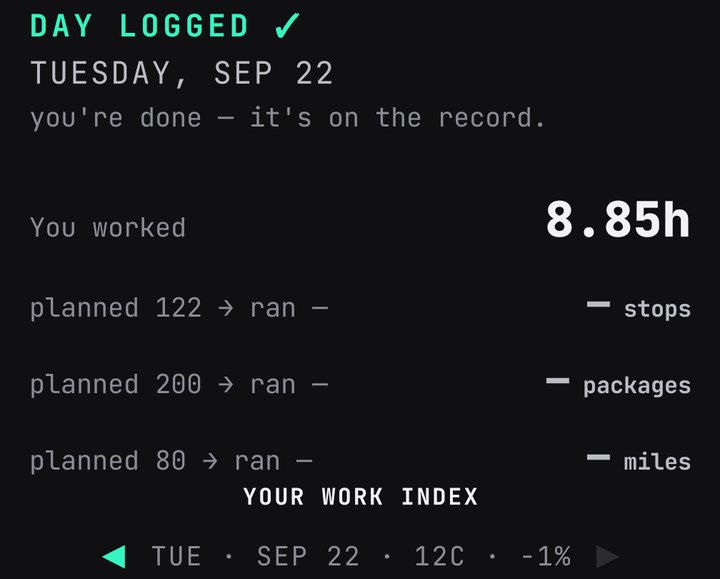
ran — means you didn't enter it. ✎ FIX THIS DAY adds it.
DAY LOGGED · YOUR AVERAGE
The dotted line is your average. Today is the outlined bar.
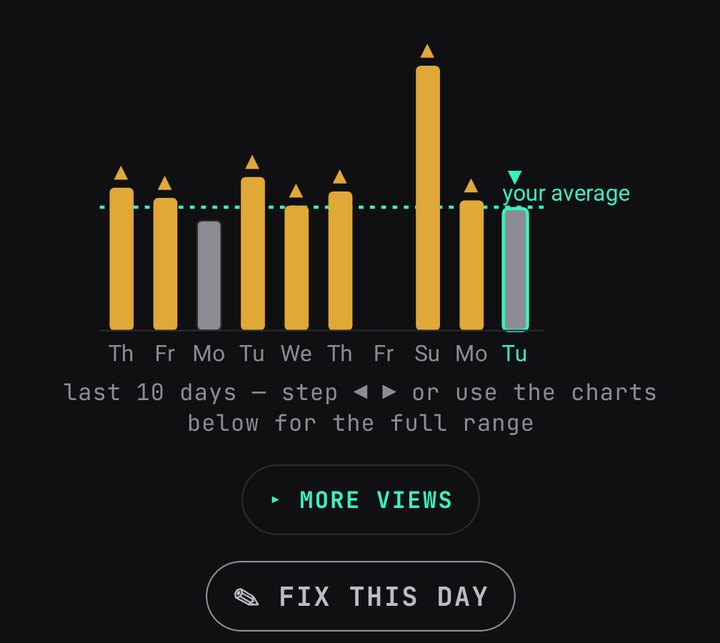
✎ FIX THIS DAYWrong time or number? Fix it. The first entry stays on the record.
4 Breaks and lunch, on your terms
Set the times you want to be nudged. The alarms are quiet, they live on your phone only, and nobody else ever sees whether you took them.
 12
125 The contract in plain words
Overtime, the 9.5, holidays, vacations, injuries. Short cards in plain language, with the exact contract wording one tap away so you can quote it.
 12
126 Keep the receipts
Every entry is timestamped. Your history shows every day you logged. Trends shows your average miles, stops, packages and hours, and how they move week to week.
 12
12PART 5 · FIX A MISTAKEWrong time, route or number? Fix it here.
DO NOT USE "DELETE ACCOUNT" TO FIX A DAY
It does not delete one day. It erases your login, and you lose every day you have logged.
| THE MISTAKE | THE FIX |
|---|---|
| A number the camera read wrong | Tap the row, type the right number. |
| Wrong route this morning | Tap ✎ ENTER MY ROUTE and type the right one. |
| The wrong row says YOU | Tap ↺ wrong route? under the buttons. Then ✎ ENTER MY ROUTE if you need to. |
| Clock-in time is wrong | Before you hold: tap the time. After: tap ↺ fix next to the time. |
| Clocked in before picking a route | You are not stuck. Tap ✎ ENTER MY ROUTE, type your route, tap SET MY ROUTE. No numbers needed. Your start time stays. |
| Clocked in and the board still needs a scan | Open ▸ TODAY'S BOARD. The scan button is under it. A scan never changes your start time. |
| Logged a day with a wrong time or number | Tap ✎ FIX THIS DAY on that day: on Today, or in the 9.5 week for the last 30 days. Change what is wrong, hold to save. Your first entry stays on the record. |
| Forgot to clock out last night | Open the app in the morning. It asks you to log yesterday first. |
| Typed your name wrong at sign-up | Text Jose. He fixes it. |
YOUR DATAWho sees what.
| WHAT | WHO CAN SEE IT |
|---|---|
| The board: routes, stops, packages, miles | Drivers at your center who have scanned the board themselves. Same as the wall. |
| Names on the board | Same drivers. There is no public list of users. |
| Your hours, lunch, breaks, your 9.5 record | You. Privacy starts at clock-out. |
| Your email | Used to sign you in and to fill in the grievance form. Nothing else. |
| Board photos | Sent once to an AI reading service to read the numbers. |
UPS sees nothing. Nothing connects to UPS.
The union sees your record when you file. No ads. No selling.
A court can subpoena any database. This one holds what you'd write on paper. Full policy: the privacy page.
WHAT'S COMINGApp Store install. Android for all.
- A normal App Store install, no TestFlight.
- Android for anyone who wants it.
QUESTIONSShort answers.
Do I need to photograph the board every day?
No. Only your very first scan is required. After that, one scan a day by anyone fills the board for everyone, and you can always type your numbers or skip them.
My name isn't on the sheet.
Cover drivers: tap the row you are running. That row is yours today.
Can Jose see my hours?
Yes. He's the one person who runs the app, and he looks only to fix problems. He never shares them, and never with management. Group stats never show fewer than five drivers.
What is the "9.5 list" question?
The list is the union's. Being on it is what makes a 9.5 grievance filable. NOT YET is a fine answer; Settings changes it later.
Something broke. What do I do?
Text Jose. Say what screen you were on and what you tapped. A screenshot beats a description.
9.5 Dispatch · IBT Local 760 · Wenatchee pilot · home · privacy